Authorising with HMRC
Learn how to authorise your ClearPort account with HMRC.
For ClearPort to send and receive messages from HMRC's system on your behalf, you must complete the authorisation process on ClearPort.
Step 1 - Pre-requisites & Gathering the Information you need
In order for you to complete the task of authorizing with HMRC, you will need to gather the following pieces of information:
GB or XI EORI number
An Economic Operators Registration and Identification (EORI) number is a reference number that uniquely identifies your organisation. You can apply for an EORI number whether your business is based in the UK or not. You can apply for this at: https://www.gov.uk/eori/apply-for-eori
Government Gateway ID
You must have your Government Gateway Id that is related to the EORI number that you wish to use. You receive this when you apple for an EORI number.
Subscribe to CDS
To do this, please follow the instructions provided in this link - https://www.gov.uk/guidance/get-access-to-the-customs-declaration-service
Subsribe to NCTS
To do this, please follow the instructions provided in this link - https://www.gov.uk/guidance/how-to-subscribe-to-the-new-computerised-transit-system
Subscribe to Safety & Security (ENS)
To do this, please follow the instructions provided in this link - https://www.gov.uk/guidance/register-to-make-an-entry-summary-declaration-in-great-britain
Step 2
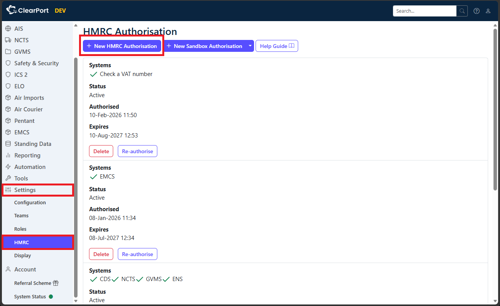
On ClearPort, navigate to Settings > HMRC. Here you can view your existing HMRC authorisations or add new ones.
Click New HMRC Authorisation:
Step 3
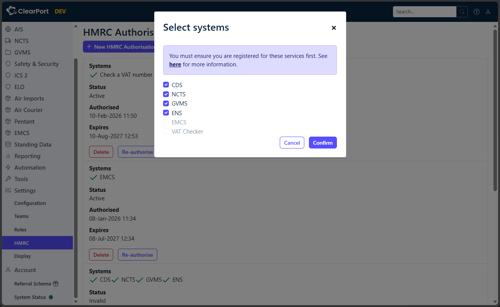
Select the systems that you want to authorise ClearPort to use and click Confirm:
Step 4
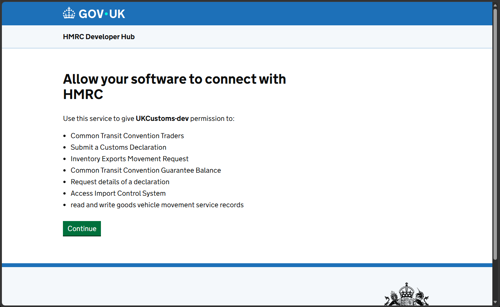
You will then be redirected to an HMRC page that will confirm the specific HMRC services that we are connecting to on your behalf.
Click Continue:
Step 5
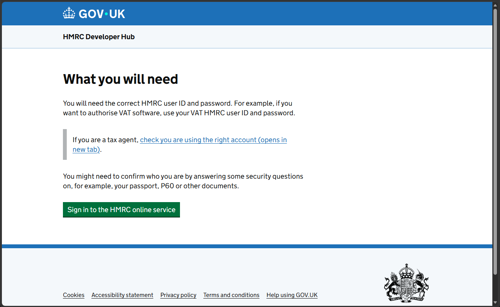
On the next page, click Sign in to the HMRC online service:
Step 6
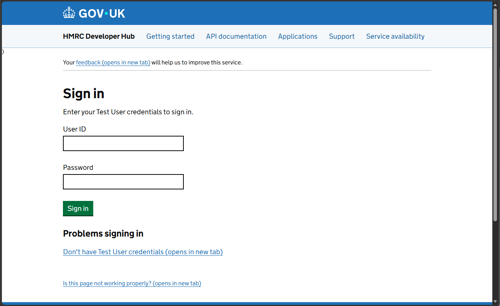
Enter your User ID (also known as Government Gateway ID) and Password and click Sign In:
Step 7
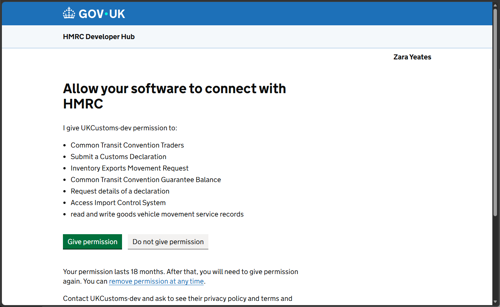
HMRC will once again confirm the systems that we are accessing on your behalf. Check that you are happy and click Give Permission:
Step 8
If successful you will be redirected to ClearPort and you will be able to see your new authorisation.
Additional Information
If you have any questions or are having problems authorising please contact us at support@clear-port.com